Import YES Bank Excel bank statement directly to Tally Prime or ERP 9 using Synergy Automation.
How to Download Yes Bank Statement as Excel
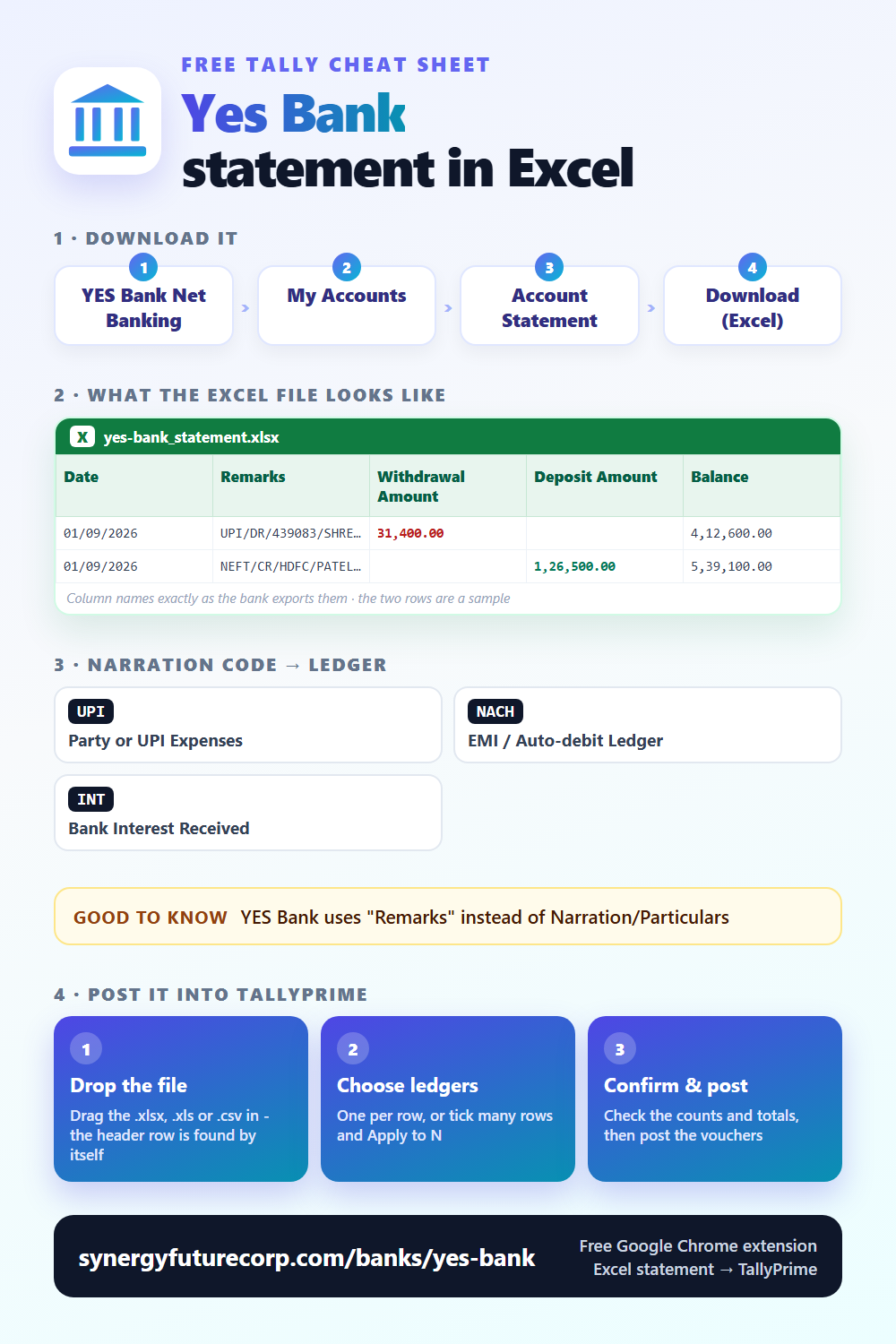
Where to find it: YES Bank Net Banking → My Accounts → Account Statement → Download (Excel)
File format: YES Bank exports as .xlsx. Columns: Date, Remarks, Withdrawal Amount, Deposit Amount, Balance.
<a href="https://synergyfuturecorp.com/banks/yes-bank"><img src="https://synergyfuturecorp.com/infographics/free/bank-yes-bank-free.png" alt="Yes Bank statement Excel columns - cheat sheet" width="500"></a>Step-by-Step: Yes Bank Statement to Tally
- Download your Yes Bank statement
Go to YES Bank Net Banking → My Accounts → Account Statement → Download (Excel). Select your date range and download as Excel (.xlsx or .xls). - Open Synergy Automation
Make sure Tally is open with the correct company. Make sure the Synergy Connector is running on the same PC. - Upload the Excel file
Drag and drop your Yes Bank Excel file into Synergy Automation. The system auto-detects the format. You will see all transactions parsed and listed. - Review every entry
Check narrations, amounts, dates. Assign Tally ledger accounts. Skip any entries you do not want in Tally. - Post to Tally
Click Post. Entries appear instantly in your open Tally company as bank payment and receipt vouchers. No XML, no file, no import dialog.
Yes Bank-Specific Notes
- YES Bank uses "Remarks" instead of Narration/Particulars
- YES FIRST and YES Prosperity accounts use the same Excel format
- Remarks column contains UPI IDs, NEFT/RTGS reference numbers
Common Ledger Assignments for Yes Bank Transactions
| Narration Contains | Suggested Tally Ledger |
|---|---|
UPI | Party or UPI Expenses |
NACH | EMI / Auto-debit Ledger |
INT | Bank Interest Received |
Use these as a reference when assigning ledgers in the review table before posting to Tally.
Frequently Asked Questions
Q: Does Synergy Automation work with Yes Bank statement format?
Yes. Synergy Automation automatically detects the Yes Bank Excel statement format and parses columns correctly. No manual column mapping needed.
Q: Do I need to convert Yes Bank statement to XML before importing to Tally?
No. Synergy Automation posts entries directly from Excel to Tally — no XML file is created or needed. This is faster and simpler than traditional XML import methods.
Q: Is this free for Yes Bank statements?
Yes. Synergy Automation is free to use. No limits on banks, entries, or companies.